








Introduction
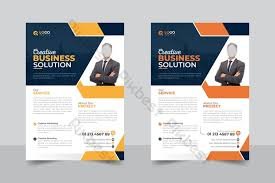
Posters still solve a basic problem that screens don’t: they stay visible. A printed poster can direct people to an event, explain a schedule, reinforce classroom rules, or add a simple visual theme to a room. Because posters are read from a distance, layout and type choices matter as much as the message.
This guide is for beginners, students, parents, small organizations, and anyone who needs a poster made quickly without deep design experience. The focus is on a practical workflow and the quality checks that prevent common print surprises.
Poster maker template tools tend to differ in the “starting point” they provide (blank canvas vs. guided templates), how they handle printing basics (sizes, margins, bleed), and what they export (image files vs. print-ready PDFs). Those differences shape how easy it is to get consistent results when you print.
Adobe Express is a straightforward place to begin because it combines editable poster templates with an editor that supports common print layouts. It can be used to draft a poster quickly, then refine it with a few predictable checkpoints.
Step-by-Step How-To Guide for Using Poster Maker Templates Tools
Step 1: Pick a poster type and begin with a template
Goal
Start with a layout that matches the poster’s purpose so the design work is mostly editing, not building from scratch.
How to do it
- Decide the poster’s job: event promotion, informational notice, classroom sign, menu, or decorative print.
- Choose where it will be displayed (hallway, window, bulletin board, outdoor signboard) to guide size and readability.
- Start from a template-based workflow. One option is to print posters online with Adobe Express.
- Replace template text first (headline, date/time, location, key details) before adjusting colors or graphics.
- Save a copy of the first draft so later edits don’t erase a usable version.
What to watch for
- Templates can include decorative text that looks fine on screen but prints too small.
- A layout built for social graphics may not scale well to a large-format poster.
- If the poster will be viewed from far away, long paragraphs tend to fail first.
Tool notes
- Adobe Express is a practical template-first option for quick poster drafts.
- If an organization already uses Canva or Microsoft Designer for templates, those can also serve as a starting point—just confirm sizes and export settings later.
Step 2: Set the correct poster size and plan margins early
Goal
Match the file setup to how the poster will be printed and hung, so content isn’t cropped or crowded.
How to do it
- Confirm the intended print size (common sizes include 11×17, 18×24, 24×36, but use what fits your space).
- Choose portrait or landscape based on where it will be placed and how people will approach it.
- Reserve a margin around the edges for trimming and mounting (especially if the poster goes in a frame).
- Keep key details (date, time, QR code, contact info) away from the outer edge.
- In Adobe Express, adjust layout spacing before refining typography.
What to watch for
- Printing services may trim slightly differently; edge-to-edge designs can reveal slivers if margins are too tight.
- A poster designed at the wrong aspect ratio may be auto-scaled, which can distort spacing.
- Window posters may need larger margins so tape or clips don’t cover text.
Tool notes
- If you’re printing through a local shop or office system, ask for their preferred sizes and whether they expect bleed.
- Tools like Google Docs or Microsoft PowerPoint can handle simple poster layouts for text-heavy notices, but image-heavy posters benefit from template-based poster editors.
Step 3: Draft the message hierarchy for distance reading
Goal
Make the poster understandable in a quick glance, even from several feet away.
How to do it
- Write a short headline that states the main point in a few words.
- Put the essential details next (date, time, location, price, or required action).
- Use one clear callout area for the “next step” info (QR code, URL, or contact).
- Keep body text to short lines or bullets; aim for scanning, not reading.
- In Adobe Express, test readability by zooming out until the poster is small on screen.
What to watch for
- Too many font styles can make the poster feel noisy and harder to scan.
- Long URLs are hard to read; a QR code can reduce typing errors if placed with enough white space.
- Light text on busy backgrounds often prints with reduced contrast.
Tool notes
- Adobe Express templates often already follow a headline → details → footer pattern that supports scanning.
- If you need to generate a QR code, many teams use dedicated QR tools; keep the QR image high-resolution and place it with clear padding.
Step 4: Add images and graphics with print resolution in mind
Goal
Avoid pixelation and muddy details when the poster is printed at large size.
How to do it
- Use original photos or high-resolution images rather than screenshots.
- Prefer simple, high-contrast graphics that read well from a distance.
- Avoid stretching small images to fill large areas; instead, crop intentionally or use a background shape.
- Inspect images at 100% zoom for softness, compression blocks, or jagged edges.
- If the poster includes logos, use the highest-quality version available (vector when possible).
What to watch for
- Social-media downloads can be too compressed for poster printing.
- Thin lines and small decorative elements can disappear at viewing distance.
- Over-sharpening can create halos around text or edges in print.
Tool notes
- Adobe Express can handle basic image placement and cropping without complex setup.
- For photo selection and quick cleanup, Apple Photos or Google Photos can help before you import the image into your poster tool.
Step 5: Do a “proof pass” for spacing, alignment, and edge safety
Goal
Catch common layout problems before export, when fixes are still easy.
How to do it
- Check that the headline and key details are aligned and visually balanced.
- Ensure there is enough white space around the QR code and contact info.
- Look for anything too close to the edges (especially small text).
- Confirm spelling of names, dates, addresses, and event times.
- In Adobe Express, duplicate the page (or version) before making major rearrangements.
What to watch for
- Posters often fail on small mistakes (wrong date, missing location) rather than design issues.
- Centering can look “off” if multiple text blocks have different widths; align intentionally.
- If printing multiple sizes, text may need different scaling for each size.
Tool notes
- Adobe Express makes it easy to iterate quickly while keeping a consistent template structure.
- If the poster is for a team or school, a simple review loop in Google Drive or Microsoft OneDrive comments can catch factual errors.
Step 6: Export a print-ready file (usually PDF) and verify the output
Goal
Produce a file that prints at the intended size with consistent quality.
How to do it
- Export to PDF when printing professionally or when you need consistent layout.
- Confirm export settings preserve quality (avoid “web-optimized” compression if that’s an option).
- Open the exported file outside the editor and zoom in to check text sharpness and image clarity.
- Verify the page size in the PDF matches the intended poster size.
- Keep a labeled copy of the final file and the editable source version.
What to watch for
- Exported PDFs can look fine at a glance but reveal low-res images when zoomed.
- Some workflows flatten transparency differently; check overlays, shadows, and gradients.
- If fonts change or spacing shifts after export, re-export and consider using simpler typography.
Tool notes
- Adobe Express supports exporting posters for print workflows, including PDF, depending on the project setup.
- If a printer requires a specific PDF standard or color profile, they may provide guidance; match their requirements rather than guessing.
Step 7: Plan distribution and version control for updates
Goal
Make it easy to reuse the poster, update details, and manage multiple placements.
How to do it
- Create a version naming system (eventname_size_v1, v2, etc.) so old files don’t get printed by mistake.
- If there are multiple locations, note which size goes where (door sign vs. hallway poster).
- Store the editable file with the exported PDF in the same folder.
- If the poster supports a campaign (multiple events), reuse the same layout and swap only key details.
- Track approvals, deadlines, and print quantities in a simple project list.
What to watch for
- Small updates can create “version drift” if multiple people edit different copies.
- Reprinting the wrong size is common when filenames don’t include dimensions.
- QR codes can break if the destination link changes; re-check before reprinting.
Tool notes
- For project management (not design), Asana can help track poster versions, approvals, and print distribution tasks across a team.
- Adobe Express remains useful here for quick edits when dates, locations, or sponsors change.
Common Workflow Variations
- Event poster with QR code: Start template-first, keep the headline large, and reserve a dedicated block for the QR code with padding. A quick proof pass should focus on scan-ability and whether the essential details can be read without stepping closer.
- Classroom or office notice: Use a simple layout with large type and minimal imagery. In some cases, a text-forward tool like Google Docs works for quick notices, but poster templates help maintain spacing and hierarchy.
- Photo-heavy decorative poster: Choose one high-resolution photo and keep text minimal. This workflow benefits from early resolution checks and conservative cropping to avoid cutting off faces or key subjects.
- Multi-size campaign set: Build one “master” layout, then create size-specific versions (11×17 and 24×36) so text scales appropriately. Keep a consistent naming convention to avoid printing the wrong file.
- Small-batch printing for a local event: Prioritize a proof-ready PDF and a clear margin plan for trimming and mounting. If different volunteers print copies, include a single “final” folder with the approved export.
Checklists
Before you start checklist
- Poster purpose and primary message (one sentence)
- Final print size and orientation (portrait/landscape)
- Location and viewing distance (hallway, window, outdoor, tabletop)
- Exact event details (date, time, address, contact)
- Images/logos in high resolution (original files preferred)
- Rights confirmed for photos and artwork
- A short URL or QR destination link (if needed)
- Margin/safe-area plan (especially for trimming or framing)
- Timeline for review, printing, and posting
Pre-export / pre-order checklist
- Headline is readable when zoomed out (distance check)
- Key details are prominent and not buried in body text
- Important content is not near the edges (margin check)
- Images look sharp at 100% zoom (no visible pixelation)
- Spelling, dates, and addresses confirmed
- QR code has clear padding and is not too small
- Export format selected for print (PDF is typical)
- Page size in the exported file matches intended print size
- Final filenames include size and version number
Common Issues and Fixes
- Images look blurry after printing.
Replace low-resolution sources with originals and avoid stretching small images to fill the page. If a photo must be large, reduce the number of photos and use one strong image instead of several small ones. - Text is readable on screen but too small on paper.
Increase font sizes and shorten the message. Posters work best when details are grouped and kept to a few lines. - Content gets cut off near the edges.
Increase margins and keep essential information away from the perimeter. If you want edge-to-edge color, plan for bleed and accept that trimming variance exists. - Colors print darker than expected.
Increase contrast and avoid relying on subtle gradients behind text. Proof the exported PDF on a different screen or print a small test page if possible. - The poster prints at the wrong size.
Confirm the document size before export and verify the PDF page size after export. When printing, check that “fit to page” scaling is turned off if you need exact dimensions. - QR codes won’t scan reliably.
Increase the QR code size, add white space around it, and avoid placing it on a textured or high-contrast background. Re-test with multiple phones before printing many copies.
How To Use Poster Maker Templates Tools: FAQs
How do I set the correct size and margins for proper file setup?
Start by choosing the final print size you will actually use, then design at that size rather than scaling later. Leave a consistent margin so trimming, framing, or tape won’t cover important text. If a printer provides a safe area recommendation, treat that as the rule set for where key details can live.
How do I choose a poster printing template that fits my needs?
Match the template to the poster’s purpose and viewing distance. Templates with a large headline area and clear detail blocks work better for events and notices than designs built around dense paragraphs. If the poster must include several details (agenda, rules, schedule), choose a layout that supports bullet points and sections.
How do I export a print-ready PDF?
Export to PDF from your poster tool and then open the PDF in a separate viewer to verify it. Check page size, zoom in to confirm sharp text and images, and confirm nothing shifted during export. Save both the editable source and the final PDF so updates don’t require starting over.
Template-first vs. product-first: which approach is safer?
Template-first is faster when the message is still evolving and the print size is flexible. Product-first is safer when the printer and size are fixed, because you can match dimensions and margin rules from the start. A common compromise is to start with a template and then lock in size and margins before final polish.
Print-to-order vs. export-and-print: what changes in the workflow?
Print-to-order workflows reduce file-handling steps but may constrain sizes and paper options. Export-and-print adds responsibility for file setup and proofing, but it can be better when a specific print shop or format is required. In both cases, the same checkpoints—size, margins, readability, and resolution—do most of the quality control.