








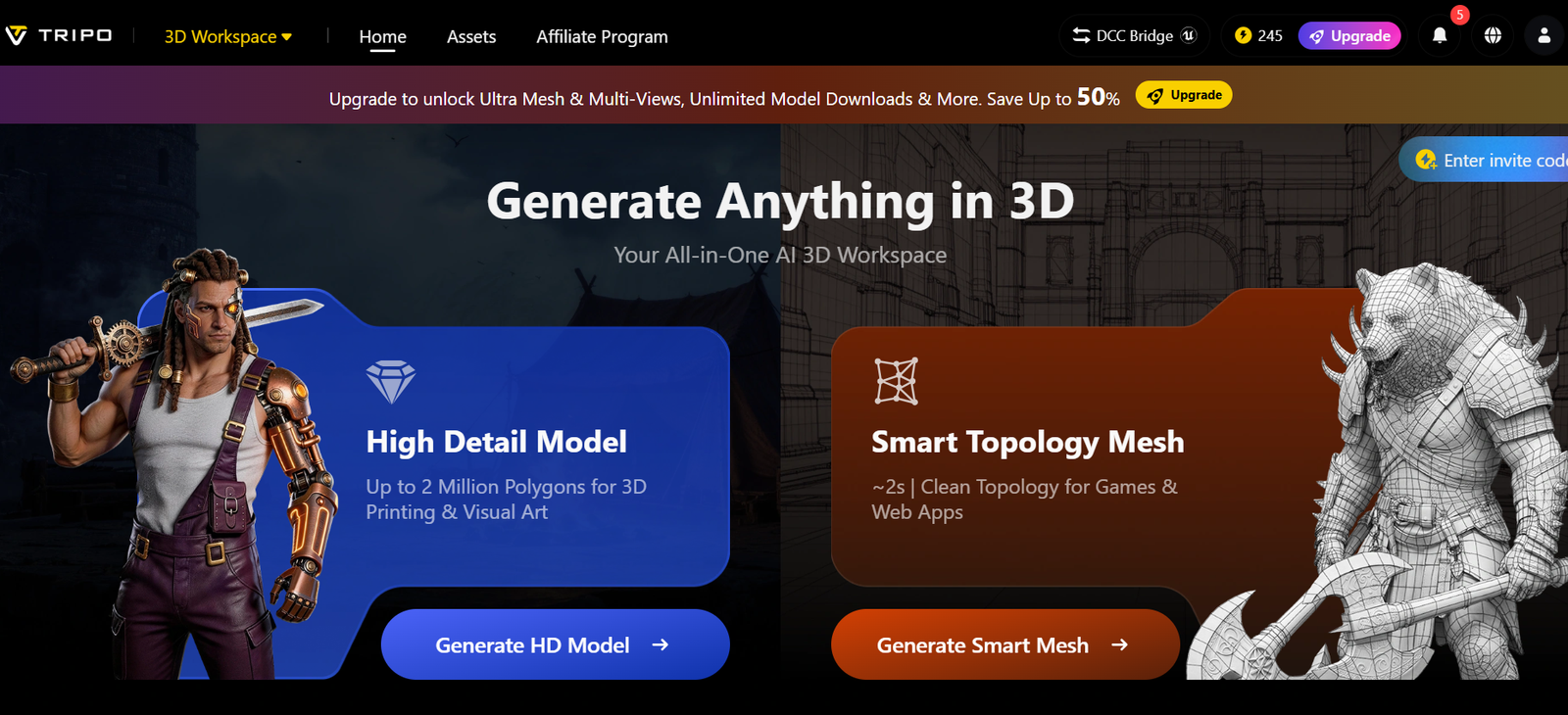
Introduction to Tripo AI 3.0 Ultra for AI 3D Modeling
3D modeling used to feel like climbing a mountain without gear. However, tools like Tripo AI 3.0 Ultra have changed that reality. Now, you can generate detailed 3D assets in minutes instead of days.
Here’s the interesting part…
You don’t need to be a professional artist anymore.
Instead, you can type a prompt or upload an image. Then the AI does the heavy lifting.
In real-world workflows, this shift saves both time and mental energy. Many beginners finally feel confident starting 3D projects.
What Is Tripo AI 3.0 Ultra and How Does AI 3D Modeling Work?
Tripo AI 3.0 Ultra is an AI-powered 3D generation tool.
It transforms:
- Text descriptions into 3D models
- Images into realistic 3D assets
How AI 3D Modeling Works in Tripo AI
You might be wondering how this works.
The system uses:
- Computer vision to understand shapes
- Deep learning to predict geometry
- Rendering engines to apply textures
As a result, you get a complete 3D model with structure and materials.
According to Gartner, AI-driven design tools are accelerating creative workflows across industries.
Why Tripo AI 3.0 Ultra Is Transforming 3D Workflows
Traditional tools like Blender require time and technical skill.
However, Tripo simplifies the process.
Key Benefits of AI 3D Modeling
- Speed: Generate models in minutes
- Ease of use: Beginner-friendly interface
- Automation: Less manual work
- Scalability: Create multiple assets quickly
In one real project, a beginner created five character models in a single afternoon. Normally, that would take days.
That’s the difference.
Key Features of Tripo AI 3.0 Ultra for AI 3D Modeling
Text-to-3D Generation in Tripo AI
Type a prompt like:
“A princess wearing a silver gown with crystal details”
Then the AI builds the model.
Image-to-3D Conversion Workflow
Upload a reference image. The system converts it into a 3D structure.
For example, designers often upload product photos to create prototypes.
Ultra Mode for High-Detail 3D Models
Ultra Mode delivers:
- Up to 2 million polygons
- 4K texture resolution
This creates highly detailed assets for professional use.
PBR Materials in Tripo AI for Realistic 3D Rendering
Physically Based Rendering (PBR) simulates real-world materials.
You can adjust:
- Metallic
- Roughness
- Surface reflections
As a result, your model reacts to light realistically.
In my experience, even small tweaks here can dramatically improve quality.
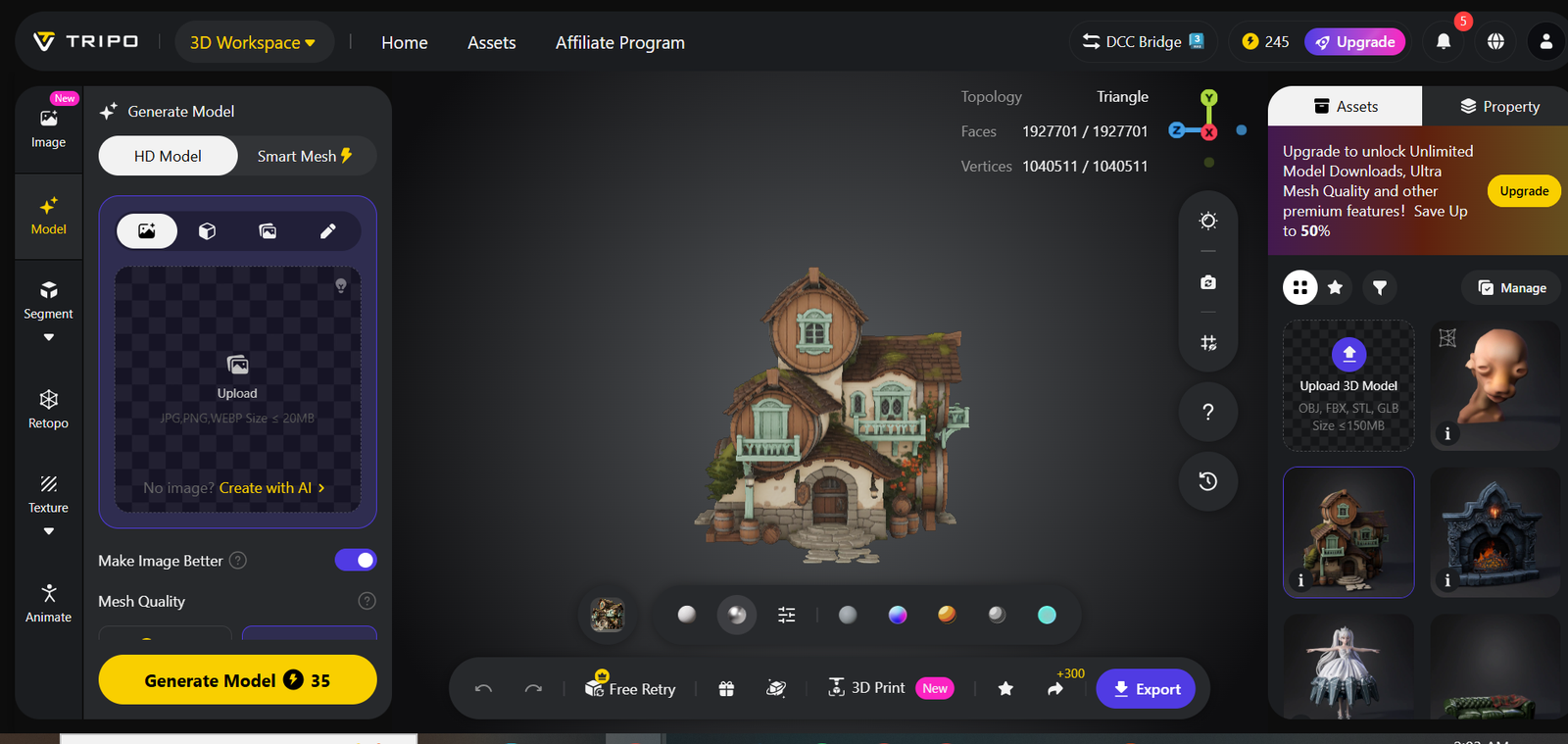
Step-by-Step Workflow: How to Use Tripo AI 3.0 Ultra
Step 1: Generate an AI 3D Model
Start with:
- Text prompt
- Image upload
Enable:
- Ultra Mode
- 4K textures
Step 2: Refine Model with Segmentation and Retopology
Break the model into parts:
- Head
- Body
- Clothing
This makes editing easier.
Step 3: Edit Textures with Magic Brush Tool
Use the Magic Brush to paint specific areas.
For example:
- Add “shiny silk” to fabric
- Apply “crystal sparkle” to edges
Step 4: Add Animation Using Auto-Rigging
Click auto-rigging.
Then test animations instantly.
This step used to take hours. Now it takes seconds.
Step 5: Export 3D Models to Other Software
Export formats:
- FBX
- OBJ
- GLB
Works with:
- Unity
- Unreal Engine
Key Takeaway
Tripo AI 3.0 Ultra reduces 3D modeling time from hours to minutes while maintaining professional quality.
Real-Life Examples of Using Tripo AI 3D Modeling
Example 1: Game Developer Workflow
A solo developer used Tripo to create characters for a mobile game.
Result:
- Saved over 20 hours of manual modeling
- Faster game prototyping
Example 2: Product Design Prototyping
A startup converted product images into 3D models.
Then they imported them into Blender for final adjustments.
Example 3: Freelance Designer Efficiency
A freelancer created client-ready assets in half the time.
This improved delivery speed and income potential.
Best Practices for High-Quality AI 3D Models
1. Write Detailed Prompts
Be specific and descriptive.
2. Use Multiple Images
This improves accuracy.
3. Adjust PBR Settings
Small changes create realistic results.
4. Optimize Polygon Count
Balance quality and performance.
Common Mistakes in AI 3D Modeling
- Using vague prompts
- Ignoring texture refinement
- Overloading models with polygons
- Skipping segmentation
However, avoiding these mistakes improves results instantly.
Tripo AI vs Traditional 3D Tools Comparison
| Feature | Traditional Tools | Tripo AI |
|---|---|---|
| Speed | Slow | Fast |
| Learning Curve | High | Low |
| Automation | Limited | Advanced |
| Output Quality | High | High |
Future of AI 3D Modeling with Tripo AI
AI tools will continue evolving.
According to McKinsey & Company, automation will reshape creative industries.
This means:
- Faster production cycles
- Lower costs
- More creative freedom
FAQs About Tripo AI 3.0 Ultra
1. What is Tripo AI 3.0 Ultra?
It is an AI tool that creates 3D models from text or images.
2. Is Tripo AI beginner-friendly?
Yes. It simplifies complex 3D workflows for new users.
3. Can I use Tripo AI for games?
Yes. Export models to Unity or Unreal Engine.
4. Does Tripo AI support high-quality textures?
Yes. It supports up to 4K textures with PBR materials.
5. Is Tripo AI free?
It offers a free plan with limited credits.
6. What file formats does it support?
FBX, OBJ, GLB, and more.
7. How accurate are AI-generated models?
Accuracy depends on input quality and prompts.
Conclusion: Should You Use Tripo AI 3.0 Ultra?
If you want faster workflows, this tool is worth exploring.
It reduces technical barriers.
It increases creative speed.
And most importantly, it helps you focus on ideas instead of technical struggles.
You might feel a bit skeptical at first.
That’s normal.
However, once you try it, the difference becomes obvious.